
Microsoft 365
Security
Blog

A client project has ended, but the client may still have access to its files. Here is how to review external sharing in OneDrive and SharePoint, decide which links and permissions are still needed and adjust permissions so that essential collaboration can continue.
Sharing files with clients and partners is part of everyday work. Proposals, project plans and shared materials are easy to send as links. When a project ends or the people involved change, it is worth checking who still needs access.
The person responsible for IT often handles many different tasks and may not know the status of every project. IT can check permissions, but the content owner knows who still needs the files. Reviewing access is therefore a shared responsibility.
Imagine a company that has shared a project plan with a client through OneDrive. During the project, someone created a sharing link that does not require sign-in. The project has since ended, but the link is still active.
An active link does not, by itself, mean that the file has fallen into the wrong hands. However, anyone who has the link can open the file. The company should check whether this level of access is still needed.
The project manager confirms that the client needs access to the final project materials. The editable working file is no longer needed for collaboration. IT gives the agreed recipients access to the final materials and removes the unnecessary sharing link to the working file.
A useful review answers three questions: what has been shared, how is access granted and is that access still needed?
In OneDrive and SharePoint, the link settings determine who can open it:
A link that does not require sign-in does not, in itself, mean that the file can be found through a search engine. What matters is that anyone who receives the link can use it. Read more in Microsoft's guide to sharing links.
The People with existing access option does not grant new permissions. It lets you send a link to someone who already has access to the file. Creating a new Specific people link does not remove permissions that were granted earlier, either. Microsoft explains these options in its SharePoint sharing guide.
Start with one completed client project. Ask the person responsible for the project to show you its OneDrive or SharePoint folder and explain which external people should still have access. It is easier to complete the review when you know what you are checking and who is responsible for the content.
If Vahti or another tool has identified a sharing risk for a file, you can start there. However, reviewing one file does not cover all file sharing across the company.
Open OneDrive or SharePoint in your browser, select a file or folder and open the Details pane. Go to Manage access. Review the people, groups and sharing links shown, along with their viewing and editing permissions.
Menu labels may vary. If you cannot review or change the permissions, involve the file or site owner. Microsoft's guide to managing sharing and permissions can help you find the right view.
A sharing link is only one way to gain access to a file. Access may also come from direct file permissions, permissions on a folder or site, or group membership.
When reviewing permissions for a SharePoint site connected to Teams, also check the members of the team or its associated Microsoft 365 group. Membership of a private or shared Teams channel is managed in Teams. Microsoft explains these differences in its guide to SharePoint permissions.
Work through these questions together:
Do not assume access is unnecessary simply because a file was shared a long time ago or the recipient is outside the company. Base the decision on the file's contents, the current collaboration needs and your company's sharing policies.
Remove the unnecessary sharing link or change the person's permissions, depending on how access is granted. If collaboration is continuing, make sure the agreed recipients can still access the materials they need. Removing a link affects everyone whose access depends on that particular link.
Review the permissions again after making changes. Removing a link alone does not prevent someone from accessing the file if they also have permission through, for example, a site or group. Confirm with the content owner that people who need the file for their work can still use it.
Vahti's File shares view shows files and folders with an identified sharing risk. The image below is an example from Vahti's public demo: a folder and a file with sharing links that do not require sign-in.
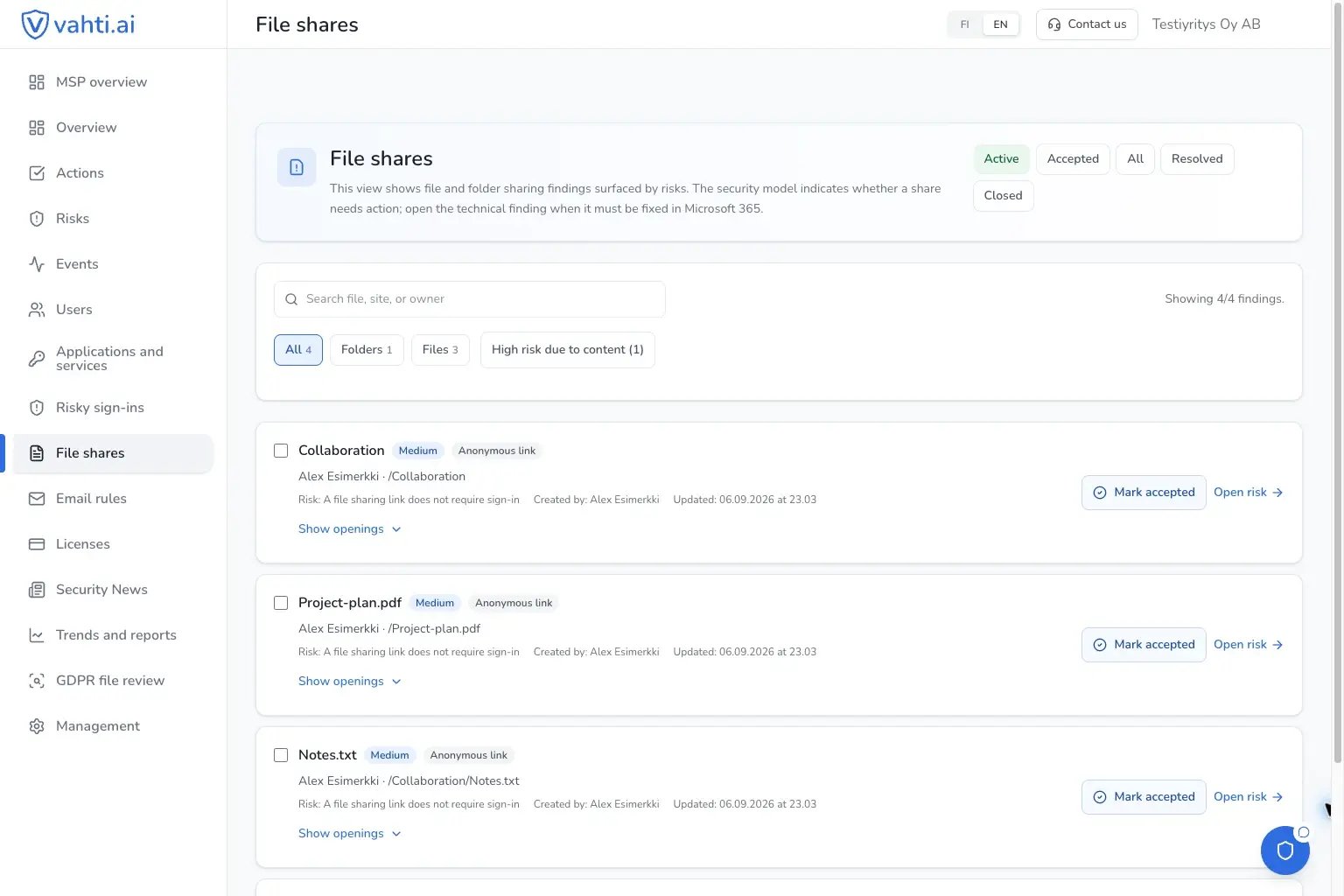
IT can open the risk details for the project plan and understand what the finding means. The content owner assesses who needs the file, and IT makes the agreed changes in Microsoft 365. Vahti explains the technical finding in plain language so that IT and the content owner can assess it together.
Accepting a finding in Vahti does not change the file's Microsoft 365 permissions. If access is left in place, assign someone to take responsibility for it and agree on the next review date.
Management is responsible for ensuring that the company has clear rules for file sharing and agreed responsibilities. IT identifies and makes the necessary changes. The project lead or content owner explains what the ongoing collaboration requires.
Add one item to your project closure checklist: review external file sharing and group memberships. Review access when a partner or the people involved in a project change, too. This helps you check permissions while the changes to the collaboration are still fresh in everyone's mind.
Start with one completed project. Work with the project lead to establish who still needs the materials. This gives IT a clear task and management a practical example of how file sharing is managed.
Explore Vahti's interactive demo to see file sharing risks, user risks, email rules and application permissions.
Want to see how Vahti can help your company day to day? Learn more about Vahti.